Scanning in the editor
In Free, the Block Editor sidebar displays the latest saved full-site scan results for the current post or page. It does not start a new scan when you save. Pro adds automatic checking on Save and Publish.
Block Editor sidebar
While editing a post or page, open the AcceGuru panel from the editor's top-right plugin menu (the eye icon). It is headed "Accessibility scan results for this post."
Until a result has been saved, the panel shows "No scan data yet. Run a full-site scan from the Dashboard to see this page's results." When saved results are available, it shows:
- a summary - "N issues found" (or "No automated violations found") and "Last scan: <date and time>";
- filter tabs by impact - All (n), Critical, Serious, Moderate, Minor;
- the list of issues; click one to highlight it in the editor;
- Refresh reloads the latest saved result, and View post on front-end opens the live page.
Dismissing individual issues from the sidebar is a PRO feature.
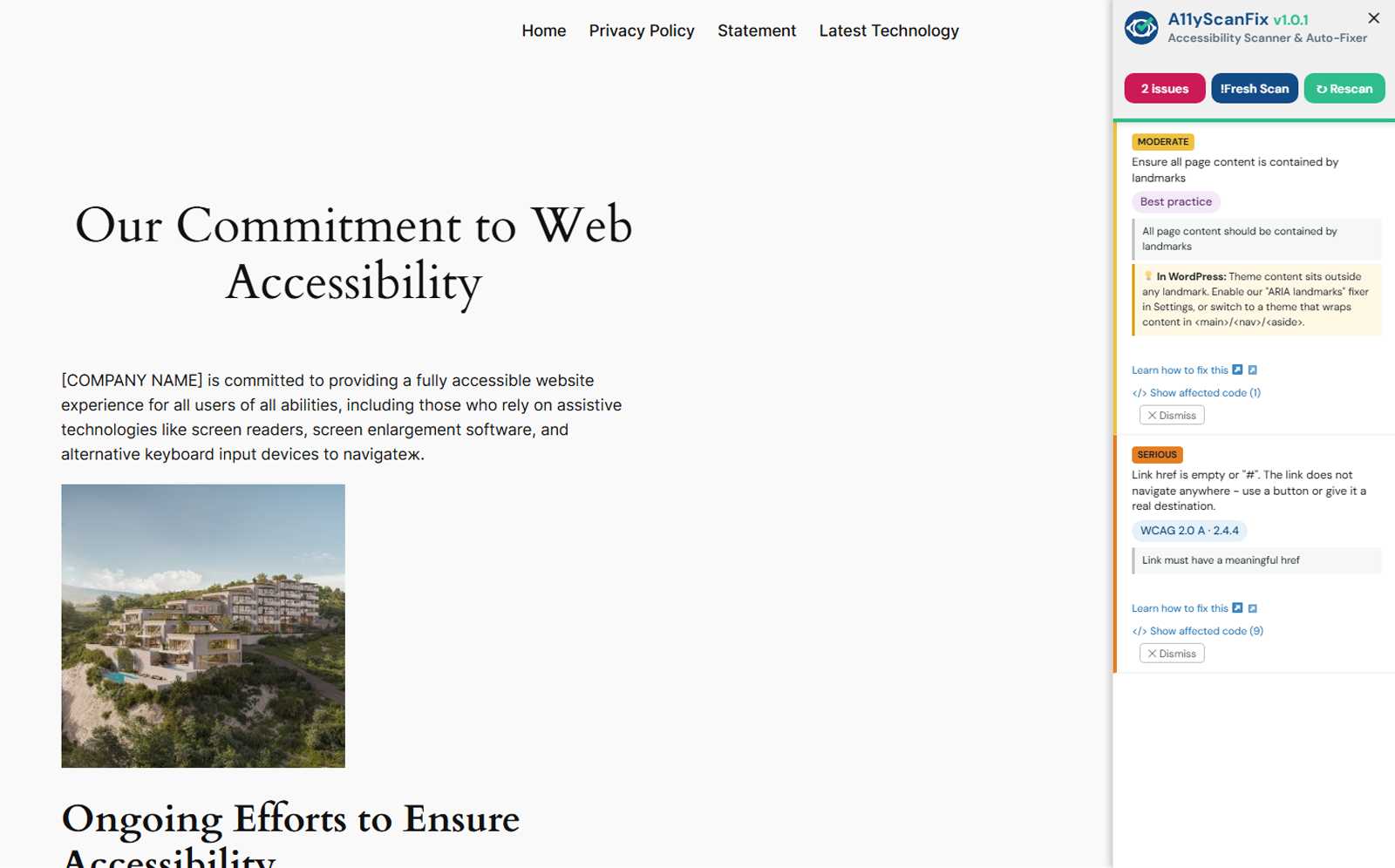
Front-end highlighter
On the front end, logged-in users who can edit posts see an AcceGuru button in the top admin bar (tooltip: "Run accessibility scan on this page"). Click it to scan the page you are viewing - the button reads "Scanning..." while it runs - then issues are marked directly on the rendered page. A floating round launcher button in a screen corner is also available, and can be repositioned or turned off in Settings.
Scan on save / publish PRO
PRO feature
In Pro, content is re-checked automatically when you Save or Publish, so the sidebar stays current without a manual scan.